Appearance
Purchase History
The Purchase History section provides a complete record of all your orders made through the FluentCart store. You can view detailed information about each transaction, including payment status and ordered items.
Viewing All Purchases
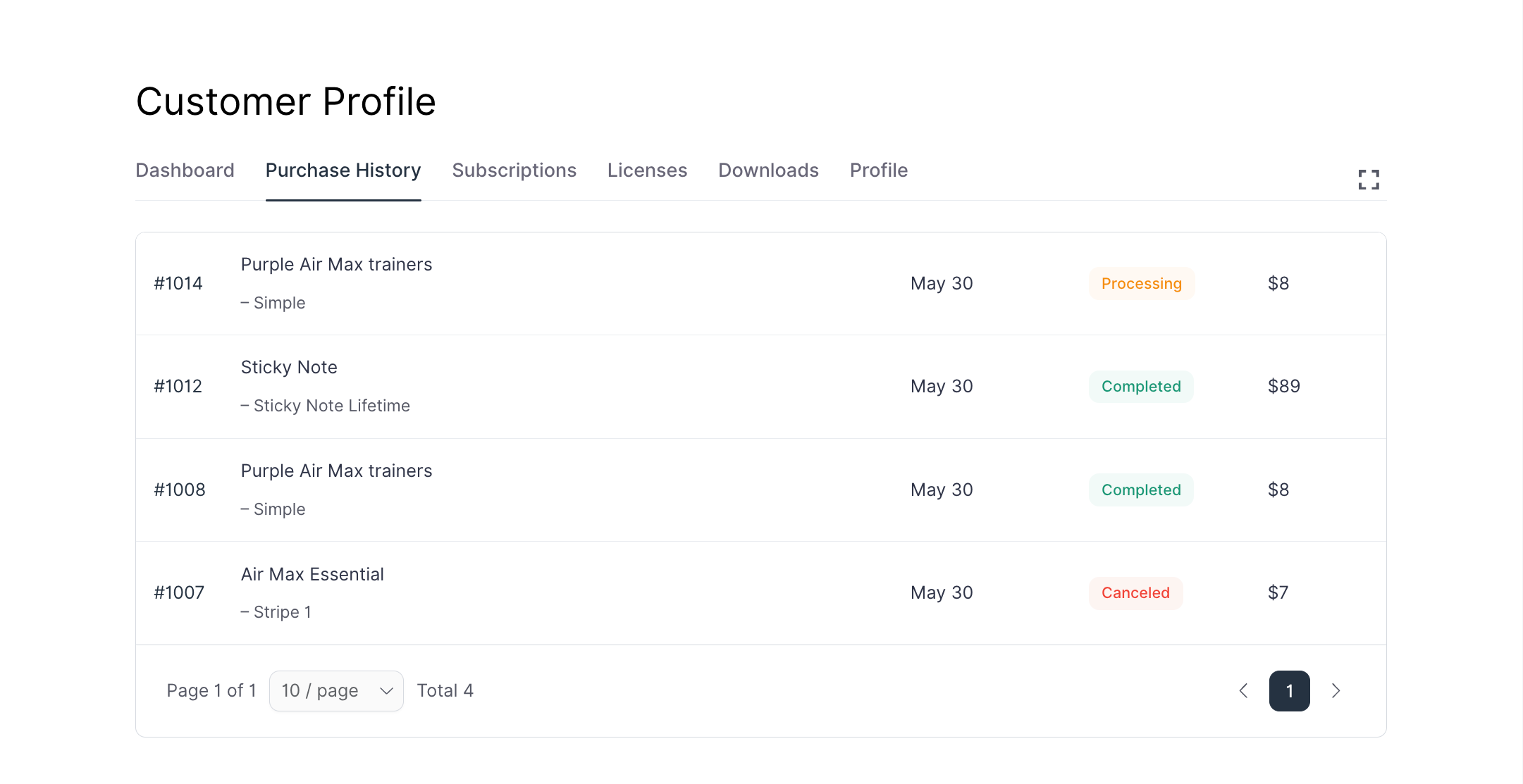
Upon landing on the Purchase History page, you will see a table listing all your orders. Each entry typically includes:
- Order Number: A unique identifier for your purchase (e.g.,
#1004). - Product: A summary of the products included in the order (e.g., "Sticky Note - Lifetime").
- Date: The date the order was placed (e.g., "May 30, 2025").
- Status: The current status of the order (e.g., "Processing", "Completed").
- Total Amount: The total cost of the order (e.g., "$8").
You can also navigate through pages if you have many orders (e.g., "Page 1 of 1", "10/page Total 3").
Viewing Individual Order Details
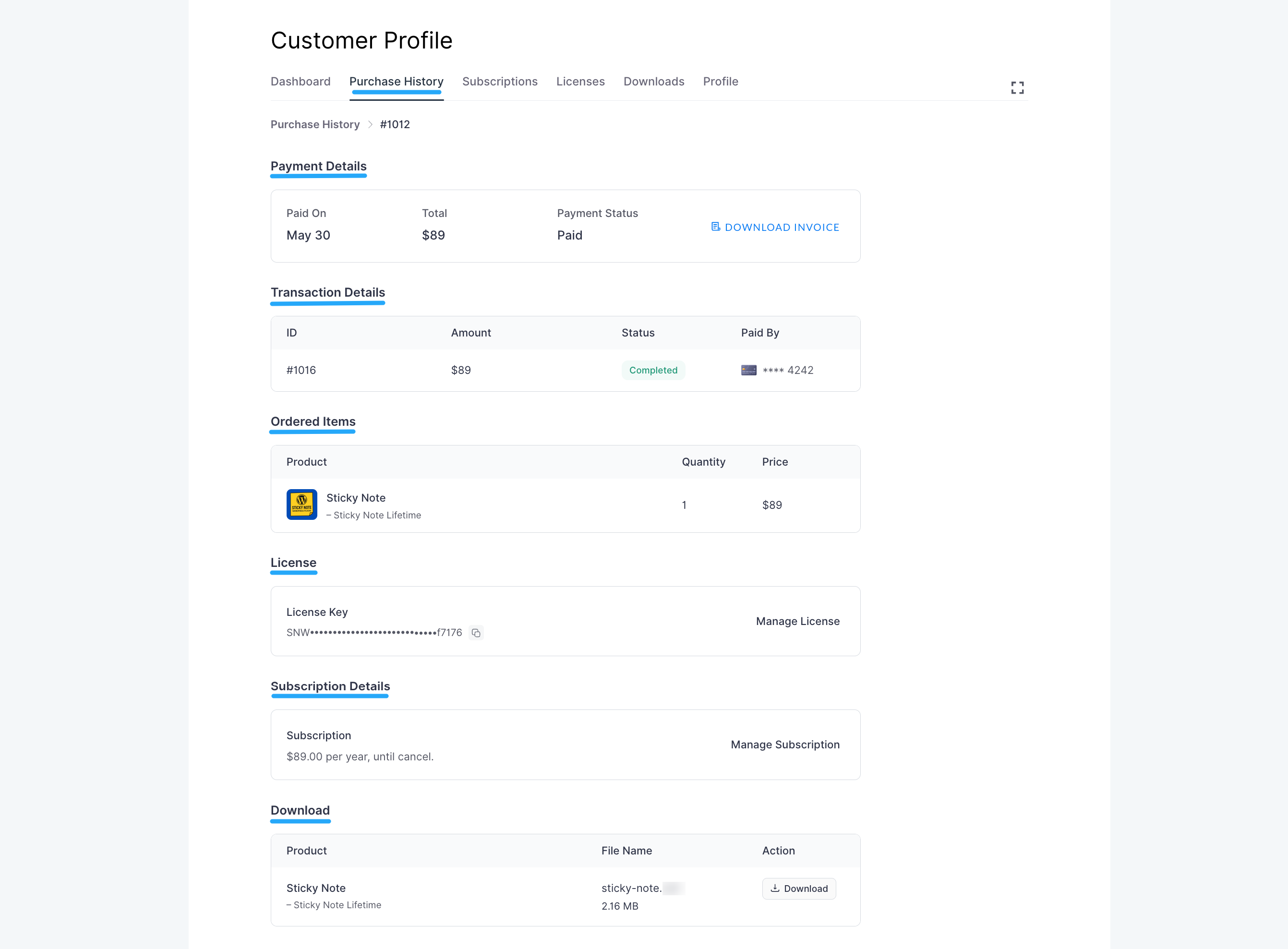
To see more specific details about a particular purchase, click on its order number (e.g., #1012). This will take you to the Payment Details page for that order.
On the Payment Details page, you will find:
Payment Details
- Paid On: The exact date the payment was processed (e.g., "May 30, 2025").
- Total: The sum of all payments for this order (e.g., "$8").
- Payment Status: The overall status of the payment for the order (e.g., "Refunded").
- Download Invoice: A button to download a PDF invoice for your records.
Transaction Details
A table showing individual transactions related to this order, including:
- ID: Transaction ID (e.g.,
#1012,). - Amount: The amount of the transaction (e.g., "$8").
- Status: The status of the transaction (e.g., "Completed", "Refunded").
- Paid By: The payment method used, often masked for security (e.g., "**** 4242").
Ordered Items
- Product: The name of the product(s) purchased.
- Quantity: The number of units purchased.
- Price: The price per unit or the total price for the quantity of that specific product.
License (if applicable)
If the purchased product includes a license, you will also see:
- License Key: The unique key for your product (e.g.,
SNW-........ f1bc15). - Manage License: A button to navigate directly to the License management section for this product.
Subscription Details
The Subscription Details section presents a table containing information about your subscriptions. Each entry typically includes:
- Subscription Details: If the product is a subscription, it will show the recurring amount and frequency.
- Manage Subscription: A button to navigate directly to the Subscription management section for this product.
Download
- Product: The name of the product available for download.
- File Name: The specific name of the downloadable file (e.g.,
sticky-note.zip). - Action: A button to download the associated product file.