

Appearance
Reports Dashboard Overview
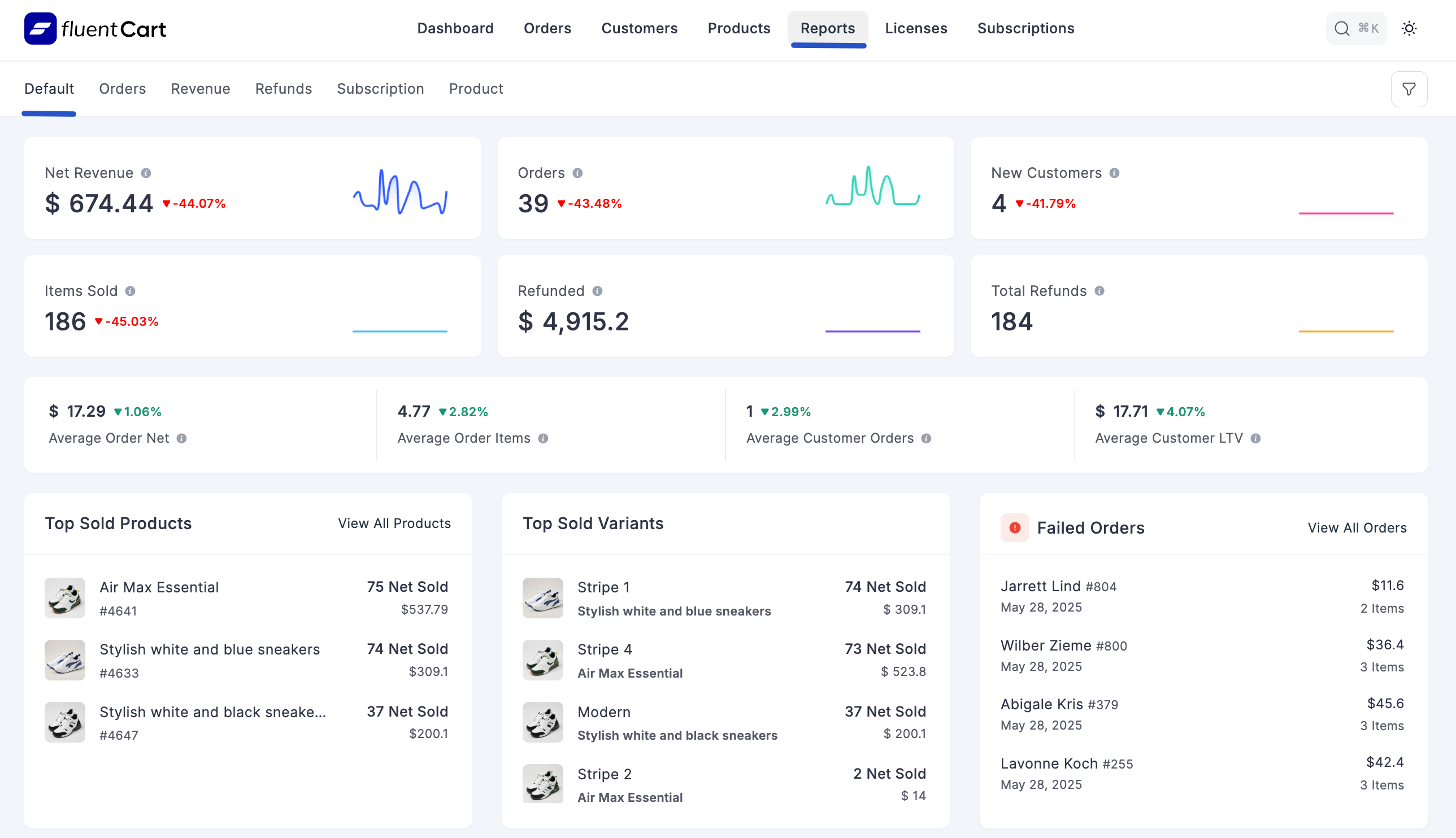
The main Reports dashboard in FluentCart provides an immediate, high-level overview of your store's key performance indicators (KPIs). This dashboard is designed to give you quick insights into your sales, customer behavior, and financial health at a glance.
Accessing the Reports Dashboard
Go to WordPress dashboard, navigate to FluentCart Pro > Reports in the top menu bar.
When you open the Reports screen, you'll automatically be on the Default tab. This tab is your main overview.
Key Performance Indicators (KPIs)
The top section of the Reports dashboard displays a summary of vital statistics:
- Net Revenue: The total revenue after deducting refunds, discounts, and other adjustments.
- Items Sold: The total number of individual product units sold.
- Orders: The total number of orders placed.
- Refunded: The total monetary amount that has been refunded.
- New Customers: The count of new customer accounts created within the reporting period.
- Total Refunds: The total count of refund transactions.
- Average Order Net: The average net revenue per order.
- Average Order Items: The average number of items per order.
- Average Customer Orders: The average number of orders placed per customer.
- Average Customer LTV (Lifetime Value): The average estimated total revenue a customer is expected to generate over their relationship with your store.
Top Sold Products
This section lists your best-selling products by the number of units sold (Net Sold) and their corresponding revenue. It helps you quickly identify your most popular items.
- Product Name & ID: The products name are shown here.
- Net Sold: The number of units sold.
- Revenue: The revenue generated by that product.
Top Sold Variants
Similar to top sold products, this section breaks down performance by individual product variations, providing even more detailed insights into which specific variants are performing best.
- Variant Name: The variant's name are shown here.
- Net Sold: The number of units of that variant sold.
- Revenue: The revenue generated by that variant.
Failed Products
This section provides a list of all products that are part of incomplete orders. It helps you track items that customers attempted to purchase but where the order did not fully complete.
- Person Name & ID: The name and unique identification number of the customer associated with the incomplete order.
- Date: The date when the product's order failed to complete.
- Items: The total number of items from that specific product that failed to be purchased by the customer.
- Amount: The total monetary value associated with the failed product items.
Navigating to Detailed Reports
From this dashboard, you can click on the respective tabs at the top (e.g., Orders, Revenue, Refunds, Subscription, Product) to access more detailed reports for each category. You can also use the "View All Products" and "View All Orders" links to dive deeper.