

Appearance
Order Details Overview
The Order Details screen in FluentCart provides a comprehensive breakdown of each individual customer transaction. This centralized view allows you to review all associated information, track its progress, and perform necessary management actions.
Accessing Order Details
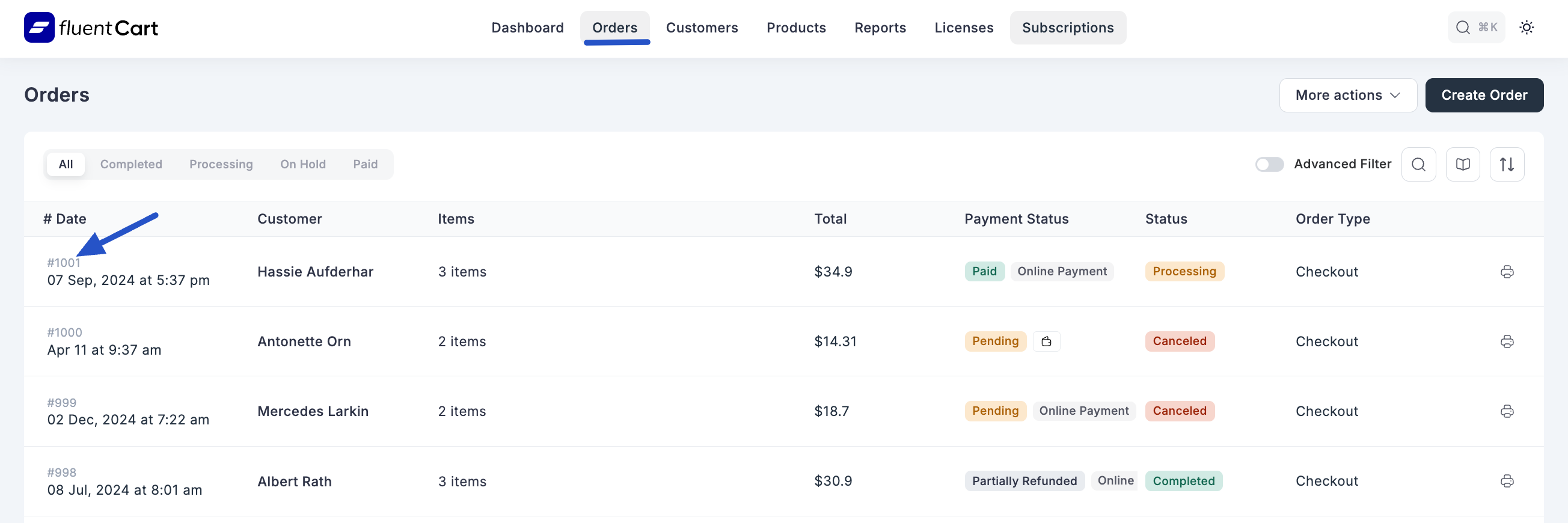
From your WordPress dashboard, navigate to FluentCart Pro > Orders.
On the Orders list, click on the ID or the "View" action icon (if available) next to the order you wish to inspect.
Understanding the Order Details Screen
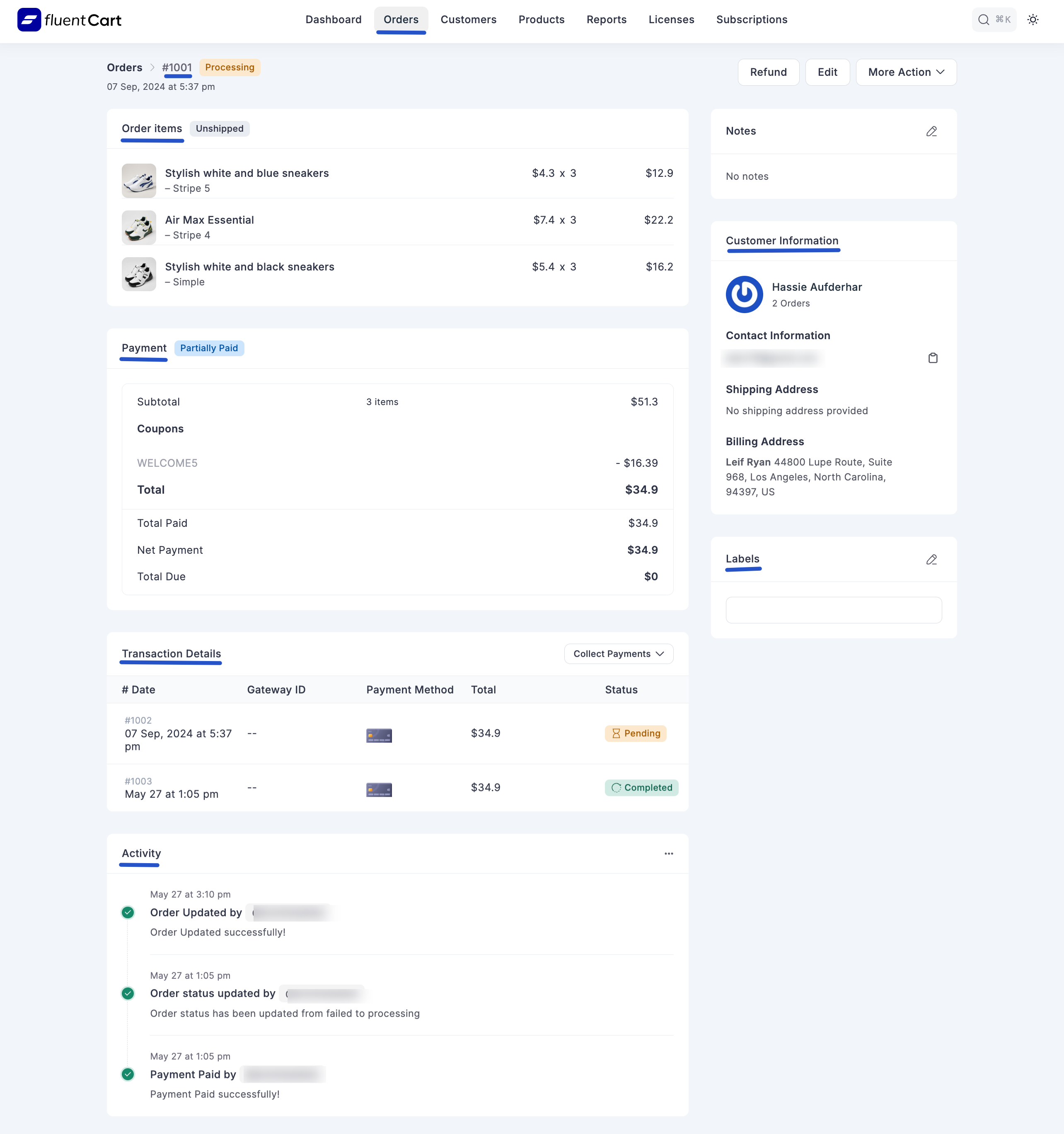
The Order Details screen is organized into several panels, each providing specific information about the order.
1. Order Header
At the top of the screen, you'll find the order's primary identification and quick action buttons.
- Order ID: The unique identifier for the order (e.g.,
#1001). - Order Status: The current status of the order.
- Refund Button: Initiates the refund process for the order.
- Edit Button: Allows you to enter edit mode for the order.
- More Actions Dropdown: Contains additional actions such as "Change Shipping Status", "Cancel Order", and "Receipt".
2. Order Items
This section lists all the products included in the order.
- Product Name: The name of the purchased product.
- Quantity: The number of units purchased.
- Individual Item Price: The price of a single unit of the product.
- For physical products, you might see an "Order Items Delivered" button to mark fulfillment for specific items.
3. Payment & Financial Summary
Provides a summary of the order's financial aspects, including payments received and any outstanding amounts.
- Payment: Indicates the payment method used.
- Coupons: Shows if any coupons were applied and their discount value.
- Subtotal: The total price of all items before taxes, shipping, or discounts.
- Total Paid: The amount already paid by the customer.
- Net Payment: The final amount after all deductions and payments.
- Total Due: If there's any pending amount, it will be displayed here.
4. Transaction Details
This table provides a log of all payment transactions related to this specific order, including both payments and refunds.
- ID: The transaction ID.
- Gateway ID: The unique ID from the payment gateway (e.g., Stripe, PayPal).
- Date: The date and time of the transaction.
- Payment Method: The method used for the transaction.
- Total: The amount of the individual transaction. <<<<<<< HEAD
- Status: The status of the transaction (e.g., "Completed", "Refunded").
=======
- Status: The status of the transaction.
- Payment Gateway Link: From here, you can often navigate directly to the respective payment gateway (e.g., Stripe or PayPal) to view detailed transaction information there.
1e3e0b9b2bef14497063cca0190b15771ec86b8a
5. Notes
An internal field for administrators to add any private notes or comments relevant to the order.
6. Customer Information
Displays key details about the customer who placed the order.
Customer Name: The name of the customer.
Contact Information: The customer's email address.
Shipping Address: The address provided for shipping, if applicable.
Billing Address: The address provided for billing.
Labels: Any custom labels assigned to the customer.
This panel also offers quick links to edit customer information, manage shipping address, and manage billing address.
7. Activity Log
A comprehensive chronological record of all significant events and changes that have occurred for this specific order. This is invaluable for tracking the order's progression and troubleshooting.
- Examples: Order status updates (e.g., "Order status updated from completed to processing"), payment paid, refunds processed, license upgrades, and order creation events.