

Appearance
Inventory Management
Efficient inventory management is crucial for both physical products and digital products with limited licenses. FluentCart provides tools to track and adjust stock levels directly from the product editing interface, ensuring you always have accurate information about your product availability.
Accessing Inventory Management
Inventory management settings are found within the Product Edit screen for individual products.
- Navigate to FluentCart Pro > Products in your WordPress dashboard. Click the "Edit" action.
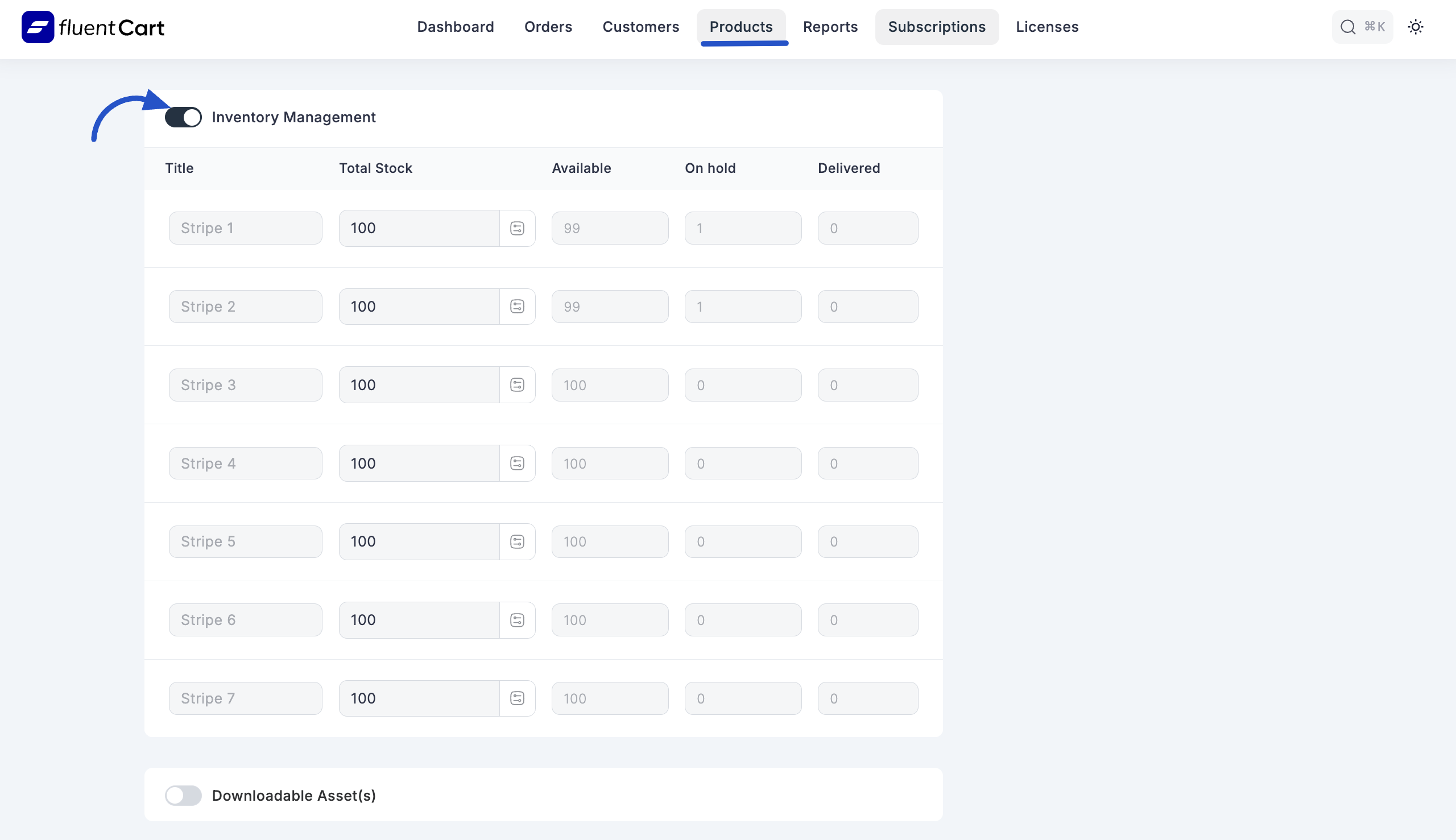
- On the Product Edit screen, scroll down to the "Inventory Management" section.
Understanding Inventory Metrics
The Inventory Management table displays key stock metrics for each product variant:
Title: The name of the product variant.
Total Stock: The total quantity of this variant currently held in your inventory.
Available: The number of units currently available for purchase by customers.
On hold: The number of units that are part of pending orders.
Delivered: The number of units that have already been delivered or fulfilled.
Adjusting Stock Levels
You can manually adjust the stock for your product variants:
- In the "Inventory Management" section, locate the variant whose stock you wish to adjust.
- Use the "Adjust by" field to enter the quantity by which you want to change the stock. This can be a positive number to add stock or a negative number to reduce it.
- Click the "Apply" button to implement the stock adjustment.
- You can click "Cancel" to discard any changes before applying.
Stock Management Best Practices
- Regularly check your inventory to prevent overselling or running out of popular products.
- For digital products with licenses, track your "Available" and "On hold" licenses carefully to ensure you have enough to issue.
- Integrate with external inventory systems if needed (though FluentCart provides robust native options).