

Appearance
Understanding Logs
FluentCart's Logs screen provides a comprehensive chronological record of all significant events and actions that occur within your store. This audit trail is an essential tool for diagnosing issues, tracking changes, and monitoring your store's background operations.
Accessing the Logs
From your WordPress dashboard, navigate to FluentCart Pro > Logs in the left sidebar.
This will open the Logs screen, displaying a detailed table of all recorded events.
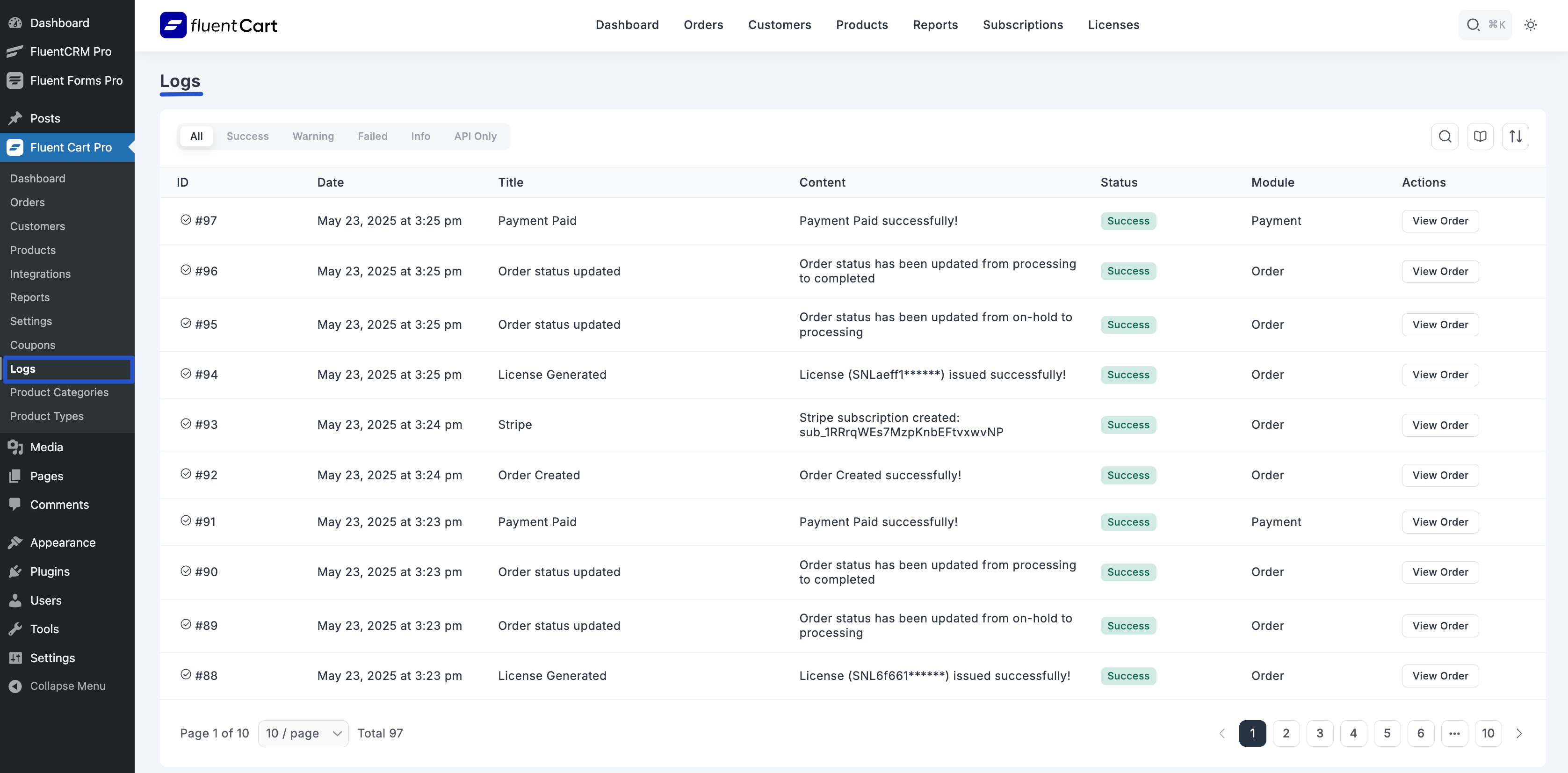
Understanding the Logs List Table
The Logs list table presents key information for each event entry:
- ID: A unique identification number for each log entry.
- Date & Title: The date and time when the event occurred, along along with a brief title describing the action (e.g., "Order Updated", "Payment Paid", "Order Refunded").
- Content: A detailed description of the event that took place (e.g., "Order Updated successfully!", "Order status has been updated from completed to processing", "Payment Paid successfully!").
- Status: The outcome or severity of the action (e.g., "Success", "Warning", "Failed", "Info").
- Module: The FluentCart module or area from which the action originated (e.g., "Order", "Payment").
- Actions: For many log entries, particularly those related to orders, a "View Order" link is provided. Clicking this link will navigate you directly to the Order Details screen for that specific transaction.
Filtering Logs
You can effectively filter the log entries based on their status or type, helping you to pinpoint specific events.
- Log Type Filters: Tabs at the top of the Logs screen allow you to filter entries by:
- All: Displays all log entries.
- Success: Shows only successfully completed actions.
- Warning: Displays entries indicating a warning or minor issue.
- Failed: Filters to show only actions that resulted in a failure.
- Info: Shows informational messages.
- API Only: Displays logs specifically related to API interactions.
Using Logs for Troubleshooting
- Diagnosing Errors: If you encounter unexpected behavior or errors in your store, checking the "Failed" or "Warning" log types can help identify the root cause.
- Auditing Changes: The "Success" logs provide a historical record of all successful operations, which can be useful for auditing purposes or tracking who performed certain actions.
- Tracking Workflows: By reviewing the sequence of events in the log, you can understand how certain processes (like order fulfillment or refunds) unfolded.