

Appearance
Additional Info Settings
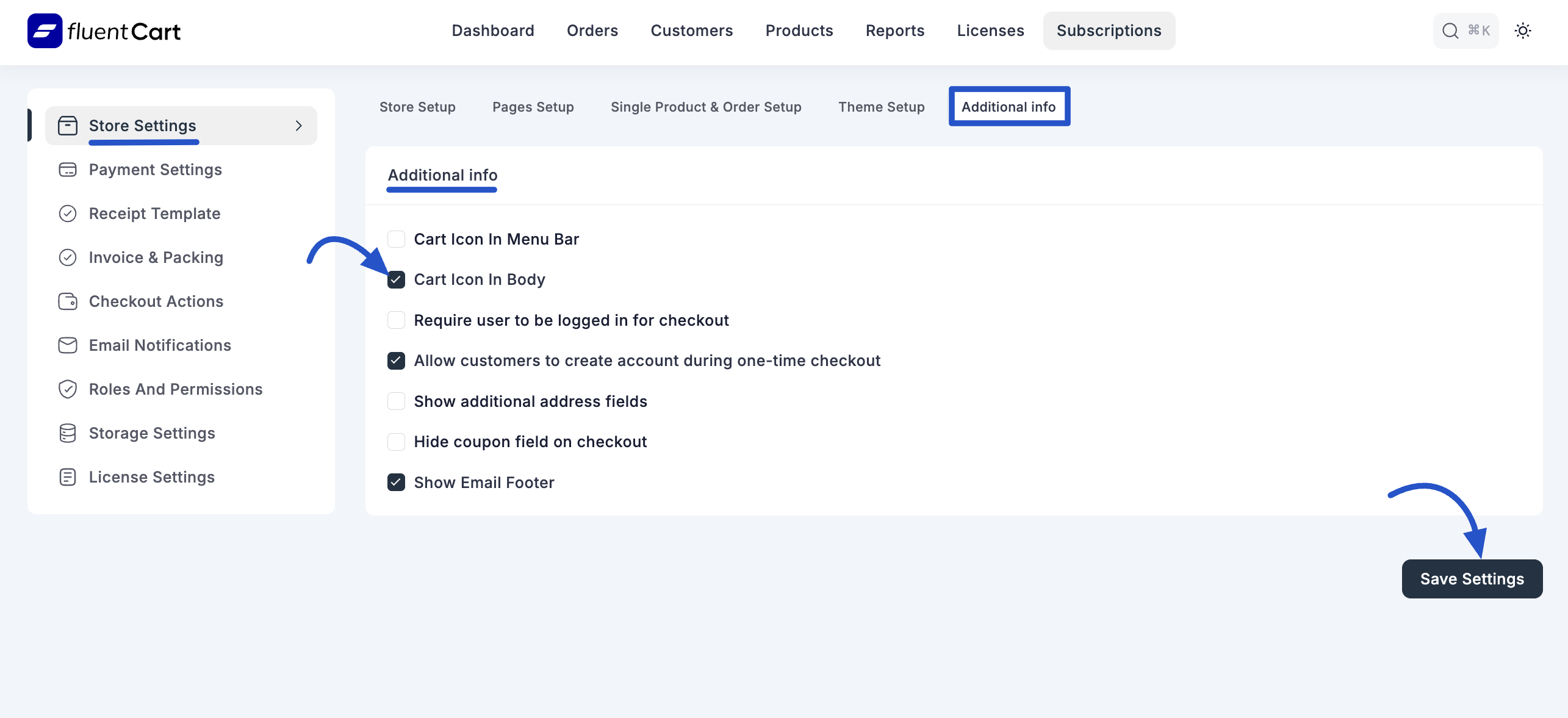
The Additional Info Settings screen in FluentCart provides various toggles and checkboxes to fine-tune the behavior of your store, impacting elements like cart display, checkout requirements, and communication. These settings allow you to customize the customer's shopping experience and optimize various operational aspects.
Accessing Additional Info Settings
From your WordPress dashboard, navigate to FluentCart Pro > Settings in the left sidebar.
Click on the "Additional info" tab.
Configuration Options
1. Display Options
These settings control the visibility of the cart icon on your website.
- Cart Icon In Menu Bar: Check this box to display a cart icon in your website's main navigation menu bar.
- Cart Icon In Body: Check this box to display a cart icon within the main content area or body of your website.
2. Checkout & Account Options
These settings influence the customer's checkout process and account creation.
- Require user to be logged in for checkout: Check this box to enforce that customers must be logged into their account to complete a purchase.
- Allow customers to create account during one-time checkout: Check this box to provide an option for customers to create a user account during a single, non-recurring checkout process. This is useful for capturing customer data even for one-time purchases.
- Hide coupon field on checkout: Check this box to hide the coupon code input field on the checkout page. This can be useful if you are not running any coupon campaigns.
3. Address & Communication
These settings relate to customer address fields and email communication.
- Show additional address fields: Check this box to display more extensive or optional address fields during checkout or in customer profiles.
- Show Email Footer: Check this box to enable or disable the display of a footer in all emails sent from your FluentCart store.
Saving Your Settings
After making any changes to your Additional Info Settings, remember to click the "Save Settings" button at the bottom right of the screen to apply your configurations.